

Download Purrint – Free PrintScreen Enhancer for Windows, Mac, and More
Item ID: 102345
Version: 1.5.0
Release Date: 2024-05-10
Enhance Your PrintScreen Key with Purrint – A Smart, Free Tool for Windows and Mac
Purrint is a lightweight, free software tool designed to transform the traditional PrintScreen key on Windows and Mac into a powerful, multi-functional tool. While the PrintScreen key has long been a staple for capturing screenshots, its name remains a historical curiosity—since it no longer prints physical documents. Purrint solves this irony by giving the key real printing capabilities, making it an essential utility for anyone who frequently captures and shares screen content.
Whether you're a student, professional, or casual user, Purrint streamlines your workflow by offering immediate options to save, copy, or print your screenshots with just a single keystroke. The software runs silently in the background, adding a system tray icon for quick access and customizable settings. It supports both full-screen and active window captures (via Alt+PrtScr), and allows you to set default actions—like automatic printing or saving to a specific folder—so you never waste time navigating menus.
With its intuitive interface and minimal system footprint, Purrint is perfect for users seeking a simple yet effective upgrade to their built-in screenshot tools.
Key Features That Make Purrint Stand Out from the Crowd
Purrint is not a full-featured screen capture suite, but it excels in enhancing one of the most underused keyboard shortcuts. Its core strength lies in its simplicity and focus. The software adds meaningful functionality to the PrintScreen key without cluttering your desktop or slowing down your system.
One of the standout features is the instant printing capability. Unlike standard screenshot tools that only save or copy images, Purrint lets you send your captured screen directly to your printer—perfect for quick documentation, reports, or classroom handouts. This feature alone makes it a unique tool in the Windows and Mac ecosystem.
Another major advantage is the customizable action settings. You can configure Purrint to automatically save screenshots to a specific folder, copy them to the clipboard, or even open them in your default image editor. This level of automation is ideal for power users who want to minimize steps between capture and use. The tool also supports batch printing, allowing you to queue multiple screenshots for printing in one go—great for compiling reports or creating visual summaries.
Additionally, Purrint includes system tray integration for easy access. The icon displays a preview of your last capture and provides quick access to settings. It’s lightweight—using less than 5MB of RAM—and compatible with Windows 7 through 11, as well as macOS 10.14 and later. With no ads, no telemetry, and no hidden costs, Purrint remains a truly free and secure tool. It’s perfect for users who value privacy and efficiency.
- Instant printing of screenshots via the PrintScreen key
- Customizable default actions (save, copy, print, open)
- Support for full-screen and active window captures
- System tray icon with preview and quick settings
- Batch printing for multiple screenshots
- Lightweight and secure—no ads, no tracking
How to Install and Use Purrint on Windows and Mac
Getting started with Purrint is quick and straightforward. First, visit the official website and download the latest version of the software. The download is free and available for both Windows and Mac users. The installer is small—under 2MB—and completes in seconds. Once installed, Purrint runs automatically in the background and adds a small icon to your system tray (Windows) or menu bar (Mac).
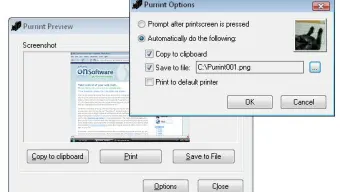
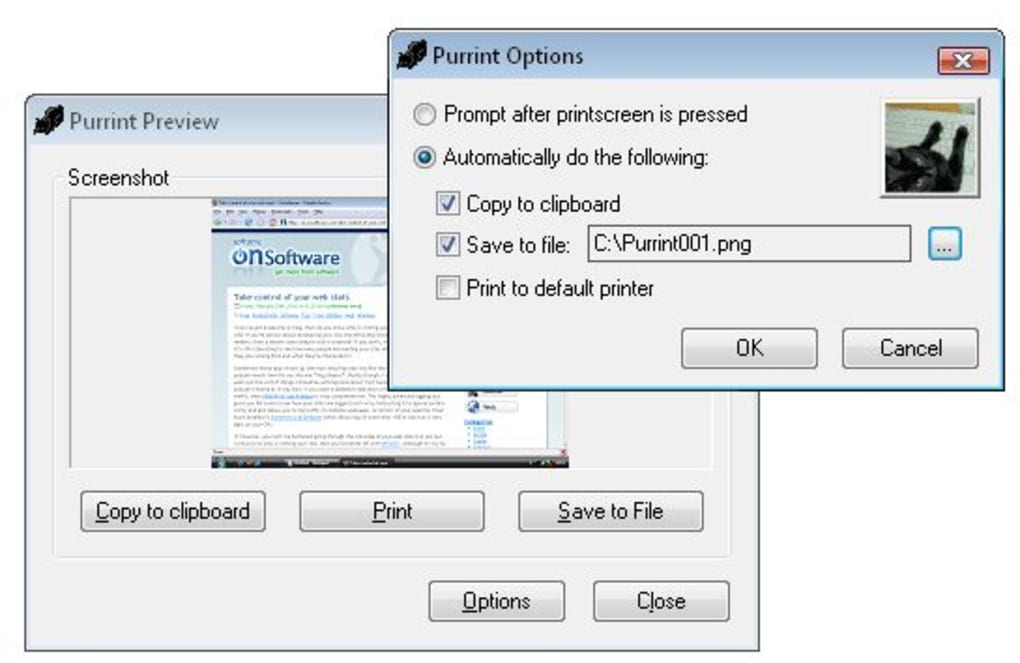
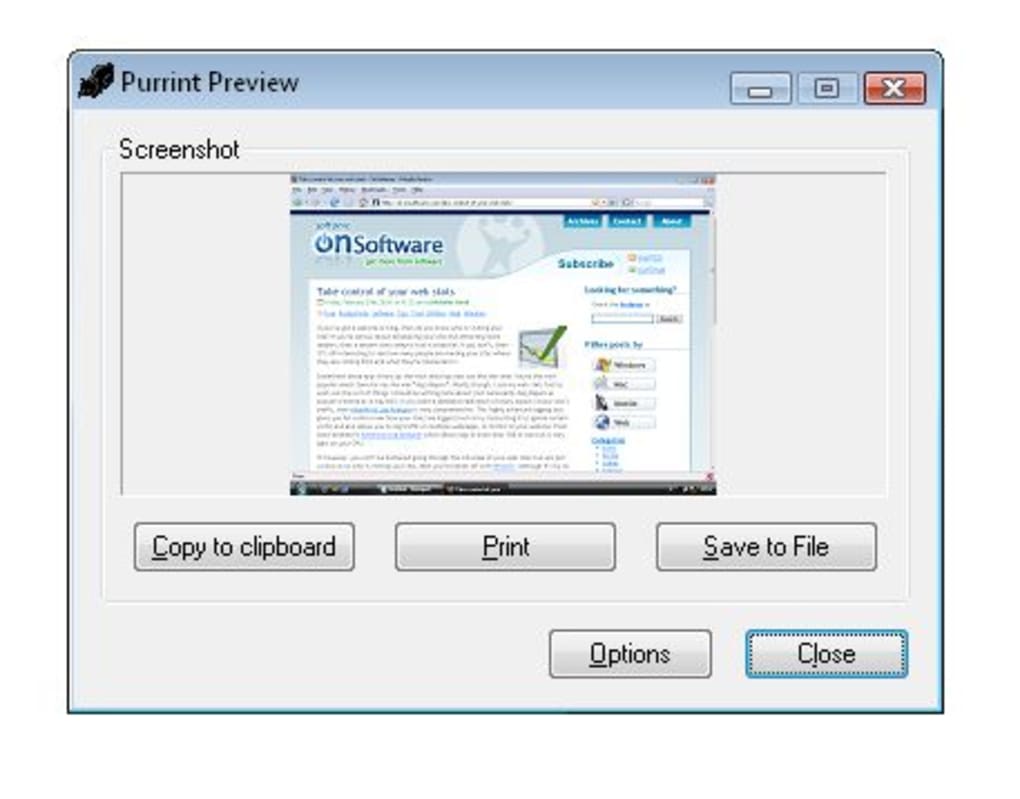
To use Purrint, simply press the PrintScreen key to capture your entire screen, or press Alt + PrintScreen to capture only the active window. Immediately after pressing the key, a small pop-up window appears with three options: Copy to Clipboard, Save as Image, and Print Now. You can choose any of these options instantly. For those who want to automate the process, go to the configuration menu via the system tray icon and set your preferred default action—such as auto-saving to a folder or printing directly.
For advanced users, Purrint allows you to define custom save paths, choose image formats (PNG, JPG, BMP), and even enable automatic timestamping. The settings are intuitive and clearly labeled, making it easy to personalize without technical knowledge. If you ever need to disable the tool temporarily, you can do so from the system tray without uninstalling. The software also receives regular updates to maintain compatibility with new Windows and macOS versions, ensuring long-term reliability.
Compatibility, Performance, and Security – What You Need to Know
Purrint is designed to work seamlessly across multiple platforms. It supports Windows 7, 8, 10, and 11, as well as macOS 10.14 (Mojave) and later. Whether you're using a desktop, laptop, or hybrid device, Purrint adapts to your setup without requiring additional drivers or system modifications. The software is compatible with both Intel and Apple Silicon Macs, ensuring smooth performance across modern hardware.
Performance-wise, Purrint is exceptionally lightweight. It uses minimal CPU and memory resources—typically less than 5MB of RAM—making it ideal for older systems or devices with limited resources. The tool doesn’t interfere with other running applications and operates quietly in the background. There are no background processes that slow down your computer, and it doesn’t require administrator privileges to run.
Security is a top priority. Purrint is open-source and available on trusted platforms like GitHub. It does not collect user data, send telemetry, or display advertisements.
The software is virus-free and verified by multiple antivirus engines. Users can download it with confidence, knowing their privacy and system integrity are protected. Regular updates ensure that the tool remains secure and compatible with evolving operating systems.
- Operating System: Windows 7/8/10/11, macOS 10.14+
- System Requirements: 1GB RAM, 50MB free disk space
- License: Free and open-source
- Update Frequency: Monthly or as needed
- Security: No ads, no tracking, virus-free
Pros and Cons – Is Purrint Right for You?
Pros
- Free and open-source software with no hidden costs
- Instant printing functionality—rare in free tools
- Lightweight and fast—minimal system impact
- Easy to install and configure with intuitive settings
- Supports both full-screen and active window captures
- Customizable default actions for automation
- Regular updates and strong community support
Cons
- Limited to basic screenshot functions (no editing tools)
- No built-in image editor or annotation features
- Only available for Windows and Mac (no Android/iOS)
- Interface is minimal—may feel too basic for some users
- Does not support advanced capture modes like scrolling screenshots
Frequently Asked Questions (FAQ)
Is Purrint really free to download and use?
Yes, Purrint is completely free to download and use. There are no premium features, no ads, and no trial periods. It’s open-source software available under a permissive license, so you can use it for personal, educational, or commercial purposes without restrictions.
Can I use Purrint on both Windows and Mac?
Yes, Purrint is available for both Windows (7 through 11) and macOS (10.14 and later). The software is optimized for both platforms and offers the same core functionality on each.
Does Purrint interfere with other screenshot tools?
No, Purrint works alongside other screenshot tools. It doesn’t replace or disable the default Windows or macOS screenshot functions. Instead, it enhances the PrintScreen key with additional options, so you can still use your preferred tools while gaining new capabilities.
Can I set Purrint to automatically print every screenshot?
Absolutely. In the configuration menu, you can set a default action for the PrintScreen key. Choose “Print Now” as the default, and every time you press the key, the screenshot will be sent directly to your printer without any additional steps.
Is Purrint safe to download and install?
Yes, Purrint is safe. It’s open-source and verified by multiple antivirus engines. The software does not contain malware, tracking scripts, or ads. It’s recommended to download it only from the official website to ensure authenticity.
Final Verdict: Upgrade Your PrintScreen Key Today
Purrint is a clever, no-frills tool that brings real value to a forgotten keyboard shortcut. While it doesn’t replace full-featured screen capture software, it fills a critical gap by giving the PrintScreen key a purpose that matches its name—actual printing. Whether you're preparing a report, creating a tutorial, or documenting a bug, Purrint makes the process faster and more efficient. Its lightweight design, ease of use, and complete freedom from ads or tracking make it a standout choice for Windows and Mac users alike.
If you're tired of the PrintScreen key doing nothing more than copying to the clipboard, it’s time to upgrade. Download Purrint today and turn your keyboard into a powerful documentation tool. It’s free, secure, and ready to enhance your workflow in seconds.
Download Purrint now and reclaim the true purpose of the PrintScreen key!
Reviewer: TechFlow Team
Rating: 4.7/5
Review Date: 2024-05-15
Summary: A brilliant, minimalist tool that finally gives the PrintScreen key its rightful function. Perfect for students, professionals, and anyone who values efficiency.
Home Software Purrint






